Text automation: why snippets are a must-have tool in 2025
From email to AI commands — how text snippets save hours every week. A look at the best tools, templates and use cases for freelancers, teams and offices.
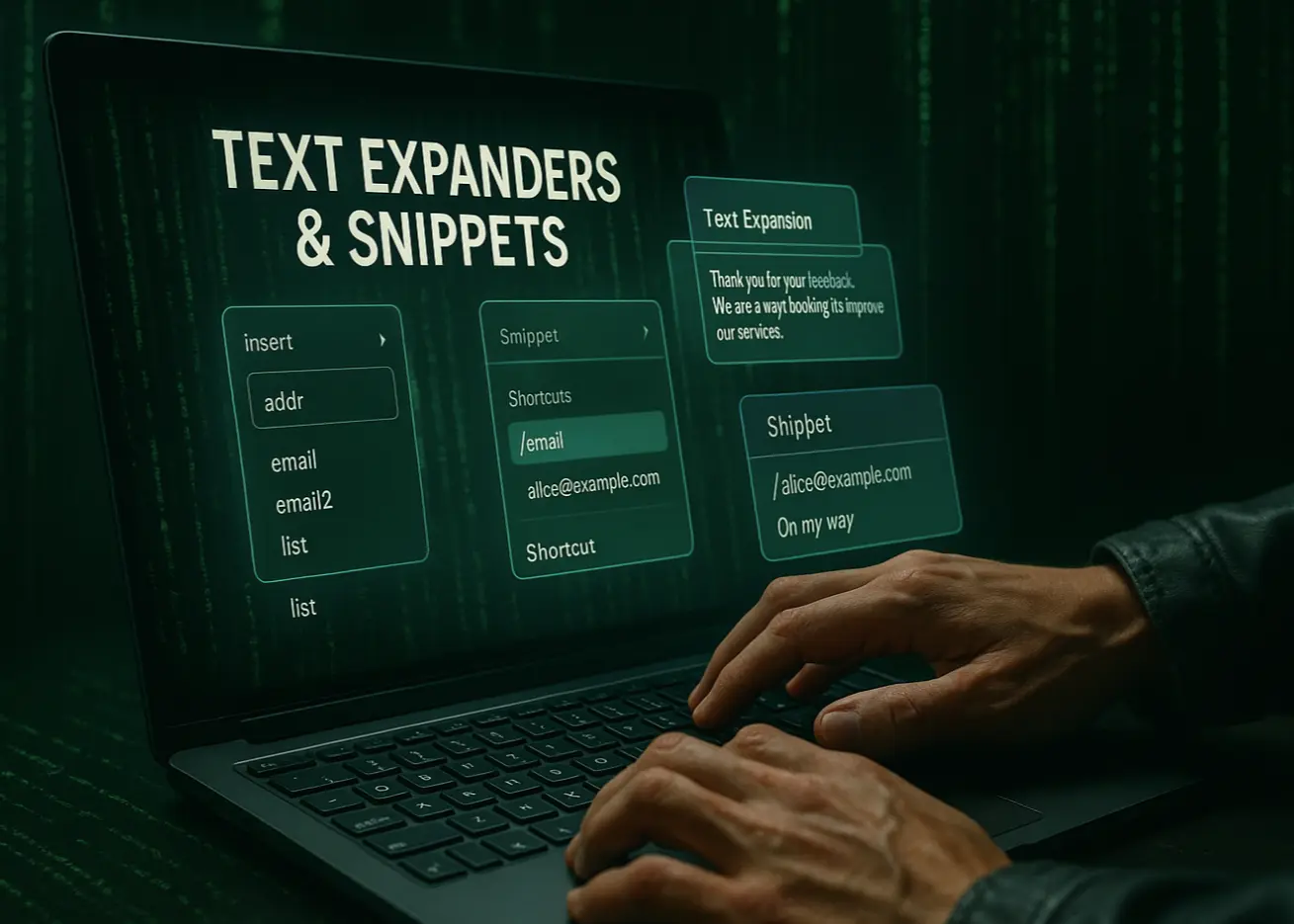
Text automation as the new standard of digital work
Just a few years ago, automatic text completion felt like a feature for geeks. But in 2025, text automation has become genuinely mainstream, and snippets (template fragments of text that expand on a key combination) have become a secret productivity weapon. The idea is simple: instead of manually typing the same phrases or paragraphs ten times a day, you set up “hotkeys” or shortcuts. Type a few characters — and the program instantly drops in the full text for you. For example, typing “;dy” can produce the full “Thanks for your message, I’ll get back to you in more detail shortly.”
These tools, known as text expanders, noticeably change the style of our digital work. They remove the drudgery of typing, saving time and nerves. There’s no need to reinvent wording every time for standard letters or messages — having a ready-made template is enough. That means you spend less attention on trivia and can focus on what really matters. In the end, text automation is not just about speed but about comfort and mental hygiene: when your workday isn’t shredded by tiny copy-paste actions, you feel less stress and approach work more creatively.
It’s worth digging into how text automation became ubiquitous, where it is applied, and which tools lead this revolution. This longread covers all of it: from real use cases for snippets to an overview of the best programs, a list of popular templates, and advice on how to start automating your own writing.
Top use cases for text snippets
It’s hard to find an office worker, freelancer or marketer who doesn’t have repetitive text tasks. Here are some of the most popular areas where text automation delivers full value:
Email communication and business correspondence. Anyone who handles a lot of correspondence knows about the dozens of standard phrases: greetings, sign-offs, thank-yous, answers to frequent questions. With snippets you can instantly insert entire letter templates. For example, customer support often uses canned responses — pre-written replies for recurring questions. Type a shortcut like “/welcome” and the client immediately receives a polite greeting: “Hello! Thanks for reaching out, we’re glad to help…” Standardized snippets save time and ensure a consistent tone with customers.
Customer support. Support specialists answer hundreds of similar requests every day. Snippets are vital here. Typical greetings, apologies and instructions formed into templates make replies fast and confident. A combination like “/sorry” can immediately drop in a thoughtful apology: “We apologize for the inconvenience. We understand your concerns and are already working on resolving the issue…” — and it’s worded perfectly, in the right tone. New employees save time picking words; customers receive a high-quality, consistent communication from the company.
Lead generation and sales. Sales and BD teams were among the first to embrace text automation. Salespeople constantly send repeat messages: cold emails to potential clients, follow-ups after calls, intro emails and so on. Instead of writing from scratch every time, you can use proven templates. For instance, the snippet “/coldlead” expands into a cold-email draft with placeholders for the recipient’s name and company — the manager just needs to personalize it slightly and send. Similarly, “/followup” inserts a structured post-meeting note: thanks for the conversation, key agreements, next steps. This guarantees that no lead is left without follow-up and that all managers maintain a consistent quality standard.
Freelance: templates for repetitive tasks. Freelancers and creators also spend a lot of time on the same kinds of texts. Imagine a designer or copywriter: each new client gets roughly the same information — an intro, a description of experience, a price sheet or brief. Why reinvent the wheel? You just need a few pre-baked pieces: “About me,” a proposal template, a list of briefing questions. For example, set up the snippet “;intro” for your standard introduction: “Hi! I’m Olena, a UX/UI designer with 5 years of experience…” Another snippet “;price” — drops in a typical price list or price range. On freelance platforms where competition for attention is fierce, a fast, well-written reply gives you an edge. Plus, it lowers the chance of slipping up or forgetting something in the proposal.
Social media and content marketing. Marketers and content creators love snippets for keeping whole content blocks at hand. They often post similar descriptions, hashtags, calls to action. For example, an SMM manager can have a snippet “;subscribe” with the template “Subscribe to our channel so you don’t miss new useful materials!” and a list of hashtags. Or a blog copywriter can have a snippet for a standard intro or closing paragraph (acknowledgment, call for comments, etc.). Even a simple insert of a standard hashtag list under the shortcut “#tags” will save daily minutes that used to go into listing them manually. It also guarantees you use the same branded hashtags without typos every time.
AI commands and working with language models. 2025 is a year when many people collaborate with AI (e.g. ChatGPT) on all kinds of tasks: from text generation to data analysis. Snippets complement those scenarios beautifully. For example, you can create a snippet “;translate” to quickly form a translation command: typing this shortcut expands automatically into something like “Translate the following text into Ukrainian and preserve the style:” — and the cursor is already where you need to paste your text. Or a snippet “;replyGPT” can insert a prompt template for AI: “Analyze the text above and write a polite reply to the customer on behalf of a support manager.” So even when working with AI, you save time on routine command wording. Some people integrate text expanders directly with AI APIs: PhraseExpress already works in tandem with OpenAI — you can select text and, with a single snippet click, get its paraphrase or short summary via AI. It’s impressive: your templates become dynamic and “smart,” able to generate different content on the fly.
As you can see, snippets are useful everywhere there is repetitive text. From HR (correspondence with candidates, templates for offers and rejections) to developers (code fragments, standard comments, license headers). They help maintain a consistent style, not forget important details, and of course handle routine text quickly. No wonder productive people consider text expanders a must-have: in a world where every minute counts, it’s better to spend it solving problems or creating rather than monotonously hitting the keyboard.
If you’re an individual user who doesn’t want a subscription, aText or Typinator (Mac) will work. If you need maximum customization and power over templates — PhraseExpress or Espanso, where you can build little programs inside snippets. For an office team that needs a shared template base and usage analytics, TextExpander is likely the best choice (it also offers centralized content management and time-saved statistics). And Raycast will appeal to Mac users who want an “all-in-one” tool: app launching, system control and text templates — plus AI-feature prospects.
A small tip: if you are only considering text expanders, start with a free solution or a trial. For example, Espanso is free and runs everywhere; TextExpander has a 30-day trial. That way you’ll feel the difference in approaches: do you prefer a minimal interface-less option (like Espanso), or a GUI with cloud sync (like TextExpander).
The most common snippets: top 20 templates for any occasion
Real, ready-to-use examples are the best way to grasp the power of text automation. Here are 20 popular snippets that will be useful for many knowledge workers. To make it concrete, we’ll show the shortcut and what it expands to (of course, you can pick any abbreviations to your taste):
Email greeting (Ukrainian):
;hello -> Hello, [Name]! Thank you for your email. [Reply text]… Best regards, [Your name]
The snippet “;hello” inserts a polite standard greeting to start an email. All that’s left is to fill in the recipient’s name and add the individual details of your reply.
Standard email closing (signature):
;sig -> Best regards, Oleksandr Ivanchenko Project Manager, Acme Corp +380 XX XXXX XXX
Instead of typing your name, title and phone each time, one call to “;sig” inserts a ready signature block. It’s useful to keep several signature variants (formal, informal, Ukrainian/English).
Thanks, we’ve received your ticket (support):
{$te}
This snippet (/ticket) is used by support to quickly tell the customer their request has been registered. Dynamic insertion {number} can be implemented as a field where the agent types the ticket number before sending.
FAQ — a ready answer to a frequent question:
;delivery -> Standard delivery time is 3–5 working days. You’ll receive a tracking number as soon as your order is shipped. Thanks for your patience!
Suppose customers often ask about delivery times. Typing “;delivery,” the manager instantly inserts a polite and complete answer instead of writing it from scratch every time.
Cold-email template for a lead:
;lead -> Hi [Name]! I came across your profile and was interested in [what specifically]. My name is [Your name], I represent [Company]. We help companies like [Lead’s company] achieve [short value]. Happy to discuss how we could be useful. If you’re interested, let me know and I’ll send more information. Thanks!
A long paragraph like that can be invoked with a few keys — invaluable for salespeople. Don’t forget about fields like [Name] — your text expander lets you fill them quickly before sending (TextExpander has fill-in fields for this).
Sign-off line for a chat/email:
;lmk -> If you have any further questions, please let me know. Have a great day!
The shortcut “;lmk” (from let me know) inserts a polite closing: you invite questions and wish a good day. Often used in business correspondence to leave a pleasant impression.
Address or details (frequently used data):
;addr -> 02000, Kyiv, 10 Bandery St., office 5
Your postal address, which you have to enter everywhere (forms, applications) — a classic candidate for a snippet. Reduce it to “;addr” and you’ll never again misspell the ZIP code or office number, and you’ll fill any form quickly.
Phone number / email:
.cell -> +38 067 123 45 67 .mail -> name.surname@example.com
Also routine things that are tedious to type. Some people start such shortcuts with a period or comma (so they don’t conflict with real words). The result: “.cell” expands into a phone number, “.mail” into an email. Especially handy on mobile devices, where long key presses are a pain.
Date and time (current):
dd// -> 16.06.2025 tt// -> 03:24
These shortcuts demonstrate dynamic insertion. When you type “dd//,” the tool automatically substitutes today’s date; “tt//” — the current time. The format can be anything (for instance, 16 June 2025 or 03:24:18 AM, depending on context). No more checking the clock and typing — even though it’s a few seconds, it adds up over a day.
Lorem ipsum (filler text for mockups):
;lorem -> Lorem ipsum dolor sit amet, consectetur adipiscing elit, sed do eiusmod tempor incididunt ut labore et dolore magna aliqua…
A classic for designers and layout artists. Instead of googling “lorem ipsum” and copying it, one snippet prints the needed volume of filler text. You can have variants: “;lorem1” — one paragraph, “;lorem5” — five paragraphs.
Template for a report or document:
;report -> **Project Report** (%CURRENT_DATE%)
- Achievements: …
- Issues: …
- Plans: …
If you write similar reports or notes every week, it’s worth making a structural draft. Above is a Markdown report template. Calling “;report” inserts a heading with the current date (thanks to the %CURRENT_DATE% macro) and a skeleton of items, and you just fill in the details.
Code snippet for a developer:
.log -> console.log(”🔥 DEBUG:”, ); ↑ (cursor placed between commas)
Programmers use text expanders heavily in code. For example, “.log” can print the long expression console.log(“DEBUG:”, ) and even place the cursor at the right spot (many tools allow you, after expansion, to move the cursor or tab to the next placeholder). Other examples: function templates, loops (.for -> for (let i=0; i<n; i++) { … }), standard HTML chunks, and so on. It speeds up coding and reduces typos.
Autocorrect for a frequent typo:
*its -> its
(Note: the asterisk * can serve as a marker for an autocorrect group). If you often mistype “its,” you can add such a snippet rule. Then when you type the wrong version, the program will automatically replace it with the correct one. TextExpander and others have built-in autocorrect packs for common typos in different languages.
Inserting an emoji or special character:
:ok: -> 👍 :alpha -> α
If you frequently use certain emojis or symbols, it’s easy to set up text tags for them. Type “:ok:”, get 👍 (thumbs up). And “:alpha” can insert the Greek letter α. Faster than searching for the symbol on the keyboard or in a character table.
Template reply to a review/comment:
;review -> Hello! Thanks for your review. We really appreciate that [insert the essence of the praise/complaint]. We will definitely take your feedback into account. Have a great day!
SMM specialists and customer-relations managers often write replies to reviews. This snippet “;review” gives a polite draft where you can quickly add the individual part. It ensures that, even on a busy day, you don’t forget to say thanks or apologize with a standard phrase.
“Back soon” message for the team:
brb -> Stepping away for ~5 min (☕).
In internal communications (Slack, Teams), you can have quick snippets for typical messages. Type “brb” (be right back) and instantly let colleagues know you’ve stepped away for coffee and will be back soon. A little thing — but it adds comfort.
A command for AI (ChatGPT prompt):
{$te}
When working with GPT, it helps to keep snippets for typical prompts. For example, “;rewrite,” as above. Then you just paste the relevant fragment into chat first and call the snippet — it adds the AI instruction “rephrase politely in Ukrainian.” It saves time and provides consistency in your prompts.
Mini-template for a task or note with variables:
;task -> [TODO] Task: {Description}; Deadline: {Date}; Owner: {Name}
Calling “;task” in something like Notion or even a plain text editor gives you a draft task item where curly braces mark variables to fill. Many expanders (TextExpander, PhraseExpress) will automatically open a dialog to enter {Description}, {Date}, {Name} and then substitute them into place. A quick way to write up a new task note in a unified format.
Interview rejection (HR template):
/reject -> Hello, [name]! Thank you for your interest in the [position] role at our company. Unfortunately, at this time we are unable to offer you the position. We will keep your résumé in our database and will reach out if relevant opportunities appear. Best of luck with your search!
Recruiters often have to send template rejections to candidates. The snippet “/reject” lets them do this gently and consistently, without forgetting to thank the candidate for their time and wish them success. The [name] and [position] placeholders are filled per situation. This kind of standardization raises HR communication’s professionalism (and saves hours every week).
Personal digest/blog-note template:
;blogtemp -> ## Idea *…description of the idea…*
Experience
*…personal experience or story…*
Conclusions
*…main thoughts and advice…*
If, say, you run a blog and want a consistent post structure, you can build this kind of Markdown template. Calling “;blogtemp” quickly drops a skeleton of headings to fill in. It helps start writing faster (a blank page is no longer scary) and ensures you don’t miss an important section.
Of course, this list could be extended endlessly — snippets are personal to your needs. The important thing is that, reading these examples, you almost certainly recognized your own “pain points”: the places where you constantly type the same things. That is exactly where automation should start.
How to start: tips for snippet beginners, mistakes and best practices
So, you’re inspired to set up your first text snippets. Where to start, and how to do it well? Here is a plan of action and a few practical tips to help you enter the world of text automation without stepping on rakes:
1. Start with an audit of your routine. Over the course of a few days, while you work, notice which text fragments you repeat most often. You can even write down by hand what you copied or retyped, and when. Typical candidates: greeting phrases, signatures, FAQ answers, address/contact details, standard documentation or report paragraphs. Start by creating snippets for these 5–10 fragments. Priority is simple: what you use most often, automate first.
2. Choose a tool and create your first snippets. As covered above, there are many tools. Beginners are advised to try something simple and friendly: start with free Espanso, or install the TextExpander trial. macOS and Windows even have basic built-in tools (Mac — Text Replacements in keyboard system settings; Windows — AutoCorrect in Word/Outlook), but they are fairly limited. Better to try a dedicated app immediately, to feel the full benefits. To create a snippet, you typically set an abbreviation (trigger) and the content it expands to. For example: shortcut “.adr” = text “1 Rynok Sq., Lviv”. Save, and test in any input field: type “.adr” + space — the address appears! ✨
**3. Make your shortcuts logical and unique. A very important tip — design a naming system for your abbreviations. They have to be easy to remember for you (and for your team, if snippets are shared). A good practice is to use a prefix that doesn’t appear in normal words. Some people start with a period or comma (e.g. “,em” for email), others use ”;” or ”/”. This guarantees the expansion won’t trigger accidentally during normal typing. Plus, this approach lets you group snippets: for example, all personal data starts with a period (.tel, .mail, .addr), and work phrases with a slash (/intro, /sign, /ticket). Consistency is the key. Don’t invent overly cryptic shortcuts that you’ll forget yourself. Better slightly longer, but meaningful: “;thanks” is clearer than “;thx1.”
4. Don’t overdo it, start small. There’s a temptation to automate everything. But when you are just getting to know an expander, create 5–10 most useful snippets and practice with them. Let your memory get used to the new “hot words.” Beginners often make a mistake: they create a hundred templates at once and then… forget half of them, or confuse shortcuts. Better to add gradually. If you notice yourself constantly typing a new phrase — oh, time to make it a snippet! Many apps even give hints: when you’ve copy-pasted the same text a few times, they may suggest turning it into a template. Listen to these hints in your workday.
5. Review and update snippets regularly. Life changes — templates have to keep up with you. If you changed phone number or job title — don’t forget to fix it in your signature template. If you found a better way to reply to customers — update the relevant snippet so you always use the new version. In companies, it makes sense to appoint an “owner” of the template library who reviews their relevance once a quarter. Delete what’s stale, sharpen what’s vague. Otherwise you can get into trouble: send outdated information from a template prepared long ago. A regular “revision” keeps your automation in shape.
6. Documentation and self-hints. When snippets pile up, it’s worth having a structure or description for them. Most tools let you group templates into folders/categories — use it (separately “Addresses,” “Customer replies,” “Code” and so on). A good practice is to write labels or notes for each template, especially if they are shared. In TextExpander, for example, you can add a name and comment explaining the snippet’s purpose. This helps new colleagues onboard faster and helps you not to confuse similar shortcuts.
7. Use variables and macros — don’t be afraid of advanced features. Once you’ve mastered the basics, try more advanced things. For example, placeholders/fields. They let you enter additional data at the moment of expansion. Useful for personalization: one email template can ask “Enter customer’s name” and substitute it into the right places. Similarly, you can automatically insert the current date, clipboard content, the name of the file you’re working in, and so on.
Macros open up more possibilities: from simple — automatically place the cursor or press Tab (to jump to another field) — to complex, as in PhraseExpress, where you can have conditional operators. For example, one snippet might randomly insert one of several greetings (so not all emails are carbon copies) or even perform calculations (say, computing the total of an invoice based on prices you enter). Not to mention the ability to call external scripts: Espanso, TextExpander, Typinator all have such features. That means a snippet can, during insertion, hit a database or call an API and paste the result. Want to impress colleagues? Make a command “.weather” that inserts the current temperature in your city, pulling it from a weather service — pure code and magic 😉.
8. Avoid conflicts and false triggers. Sometimes you set too short or “non-unique” a trigger, and it interferes with normal typing. The classic example: you decided “omw” would expand into “on my way” (for chats). But these letters appear inside other words too… As a result, the system may unexpectedly replace a chunk of a word with your template. So the rule: never use real words as triggers. Add a special character or digit if needed. If the snippet still fires where it shouldn’t, you can usually configure it to trigger only under certain conditions (e.g. after a space or punctuation, not inside a word). Or simply disable certain groups of snippets in certain applications (where they get in the way). For instance, you can disable a work-snippet library inside a code editor to avoid conflicts with code.
9. Learn to use snippet search. When you have a dozen templates, you remember them. With a hundred, it can be hard to recall the shortcut you set for a specific phrase. Don’t worry: almost all expanders have a search command. For example, in Espanso, Alt+Space opens a window where you can type a few letters and see all matching snippets. Raycast has fast search by name or content directly in its command menu. TextExpander can also invoke a search window globally. This feature is very useful when you remember you made a snippet about “vacation” but forgot the shortcut — type “vac” in search and it’ll suggest the template.
10. Gradually expand the library and enjoy the results. After a couple of weeks of use, you won’t imagine how you worked before. Add new templates boldly, share the best ones with colleagues. You can even import someone else’s library: TextExpander has public snippet groups (for language accents, emojis, etc.) — you can plug them in and immediately get a bunch of useful stuff. But be sure to go through them and disable what you don’t use, to avoid clutter. Remember: the goal is to simplify life, not complicate it with excess automation. If a snippet annoys you or doesn’t spark joy — fix it or delete it.
Finally: don’t be afraid to experiment. Text automation is flexible, and you decide how it serves your tasks. For some, five base substitutions are enough; others build whole macro-systems. Over time, you’ll find your balance.
Trends in 2025: LLM integration, dynamic templates, APIs and security
The world doesn’t stand still, and text expanders are evolving too. What trends are shaping text automation in 2025?
- Tight integration with AI and large language models (LLMs). If 2023 was the year of the ChatGPT boom, 2025 is the time when AI is woven into every work tool. Text expanders are no exception. We’ve already mentioned that PhraseExpress added a direct link to the OpenAI API. This lets you do complex things with a single snippet click: for example, select the customer’s text and call the AIreply template — the program sends a request to the model “Write a short, polite reply to this request” and inserts the result into the reply. Magical — another popular tool — positions itself as an AI-powered expander: it can suggest phrase completions and content based on context as you type. Text Blaze rolled out a Blaze AI feature to help edit and create template text on the fly. We can expect expanders to soon suggest template creation when they spot a repetition (some already do this), or even auto-generate template drafts from your previous text. AI can also help with the content itself: insert a translation, summarize a long paragraph, clean up grammar — all without leaving your favorite app. The boundary between “write it yourself” and “generate with AI” keeps thinning.
- Dynamic and “smart” templates. Users want more than just static text insertion. So modern text expanders are developing dynamic snippet capabilities. That includes the variables/fields we mentioned and logical constructs. For example, conditional fragments: one snippet can contain several text variants and pick the right one based on context. Imagine an HR template that automatically substitutes “his/her” depending on the candidate’s name — this is already reality (PhraseExpress can match grammatical gender in templates). Another example — a snippet that asks via checkboxes “what to include in the reply” and assembles the text from selected blocks. Something like an on-the-fly letter builder. Another trend is using external data: snippets that pull info from CRM systems, databases or interact with web services via API. Thanks to this, your letter template can, say, auto-fill the customer’s current balance from your system or pull a list of products from a cart — all through a small script inside the expander. Previously such integrations required separate scripts or macros; now many text expanders aspire to be a kind of “light automator” for office tasks.
- Unification with other tools and ecosystems. Recall Raycast — it combined launcher, search, task and snippet management. This signals a tendency: users prefer one universal tool to ten different ones. So we see text expanders merging with clipboard managers, password managers, task trackers. Some apps offer entire template repositories for different cases. Companies have noticed the value too: Slack added template reply functionality; Gmail develops Smart Compose. Possibly, in the near future, our favorite apps will have built-in AI hints that work like snippets (you already type ”/” in Word and see a context menu offering to insert a ready component). But the strength of dedicated expanders is that they are agnostic to apps — they work anywhere there’s a text field. The open-API trend here is interesting too: TextExpander, for instance, has an API through which big companies integrate it into their systems (e.g., automatically creating shared snippets for new hires).
- Security and privacy. As popularity grows, so does attention to security. A text expander essentially watches every keystroke (otherwise how would it spot your trigger). That’s a little scary, especially for corporate IT teams who may see it as a keylogger. So trust in the vendor is crucial. Reputable players like TextExpander roll out strong encryption, security audits, give admins control over who uses what. Others, like Espanso, stress open source and local storage: all code is open, no cloud data by default — so leak risk is minimal. Data security also applies to the templates themselves: imagine a snippet contains some confidential text (e.g., a standard reply with specific financial numbers) — you have to be sure access is restricted to your team. Enterprise solutions let you segment access rights, password-protect individual phrases, and so on. Another aspect — “safety” against your own mistakes: not to accidentally paste something extra into the wrong chat. Features like “confirm expansion” help (for very large or critical templates, the program can show a preview and ask “OK to paste?”). Overall, the trend is this: text expanders are maturing into products suitable even for strict corporate environments, not just enthusiast toys.
- Community and template ecosystem growth. In 2025, users don’t want to reinvent the wheel alone. Around popular tools there are communities sharing useful snippets, macros and life hacks. Sometimes officially (TextExpander template galleries, public Espanso packs), sometimes on independent platforms (blogs, GitHub repos). This sets an interesting trend: standardization of templates for specific professions. For example, you can find a ready-made set of snippets “for a dentist” or “for an IT recruiter” and instantly get the most common phrases for that domain. In the future, programs may even ship with a “store” or template library, where AI helps you pick what fits you and adapts it to your style. Fantasy? Already partly real: some tools, during onboarding, ask your professional field and offer to download relevant examples.
To summarize, the world of text automation moves toward greater smartness, flexibility and integration. This is no longer just a “text expander” — it is an important hub in the ecosystem of digital tools, combining a bit of AI, a bit of RPA (process automation), a bit of knowledge management. And importantly, developers don’t forget security and convenience — mass adoption depends on it.
Speed, consistency and mental hygiene
Text automation in 2025 is no longer exotic — it is an everyday helper of the modern knowledge worker. If snippets were once the lot of techies, today they are valued by lawyers, doctors and entrepreneurs alike. They speed up work, improve consistency of communication, and even contribute to better load balance.
Think about it: instead of mechanically answering identical emails for half a day, you do it in minutes — and free up time for analysis, strategic tasks or learning. This isn’t “laziness” — it’s smart management of your intellectual resource. Mental hygiene shows up in not keeping unnecessary things in your head (like the wording of yet another standard apology) and not exhausting yourself with routine actions. By offloading repetitive work, you reduce burnout risk. On top of that, work becomes less dull and more creative — which is a plus for motivation.
Of course, text expanders are not a silver bullet. They won’t do all the work for you. But they create a multiplier effect: a good specialist becomes even more productive with them. For example, a consultant can handle 8 requests in the same time instead of 5, and the quality of answers only grows (because the texts are vetted, error-free, in one tone). A sales team can keep personalization high without losing send volume. And a freelancer can take on one more client, knowing templates will help them stay on top of tasks.
In closing: text automation is about comfort and control. You configure your digital workspace so that you are less irritated by trivia. Anyone who has set up at least one snippet for themselves feels an almost magical satisfaction when it fires. Seems small — but the day is already better!
So if you haven’t tried it yet — we strongly recommend. Your colleagues may have already automated their writing long ago and quietly wonder why you still type long texts “by hand.” It’s time to catch up with the trend. Start small, gradually expand the horizon. May 2025 be the year you say: “I’m no longer a slave to Ctrl+C/Ctrl+V. I am master of my own text templates!”
Put your texts in order — and feel how it puts your thoughts in order. Speed comes, but the main thing is that lightness and confidence come in every line you write. And that, no exaggeration, is priceless.
Happy typing! (now considerably less, and much happier 😊)